How to Force Quit on Mac: 7 Ways That Work
To force quit on a Mac you press Command + Option + Esc, pick the frozen app and click Force Quit. That fixes most freezes in under 10 seconds. This guide covers all 7 ways to force quit an app on Mac, including Terminal and the Dock, and what to do when force quit itself stops working.

To force quit on a Mac, press ⌘ Command + ⌥ Option + Esc, click the frozen app in the list, then click Force Quit. If the keyboard is not responding, choose Apple menu > Force Quit… instead. If nothing on screen responds at all, hold the power button (or Touch ID) for about 10 seconds to turn the Mac off.
1. Force quit with the keyboard shortcut (fastest)
The force quit shortcut on Mac is ⌘ Command + ⌥ Option + Esc. It works in every version of macOS and on every Mac keyboard, including Windows keyboards plugged into a Mac, where the keys are labelled Windows (Command) and Alt (Option).
- Press Command + Option + Esc together. The Force Quit Applications window opens over whatever you were doing. On a MacBook Pro with a Touch Bar, Esc is on the left end of the Touch Bar.
- Select the frozen app. An app that has stopped answering shows (Not Responding) next to its name.
- Click Force Quit, then confirm. The app closes immediately. Anything you had not saved in that app is lost; every other app is untouched.
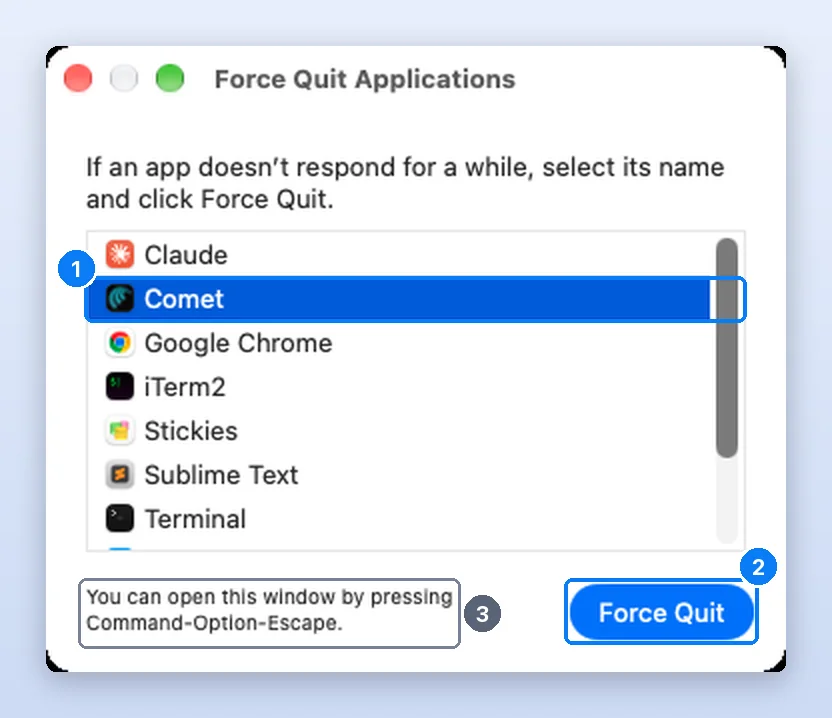
If you can’t quit an app normally because it isn’t responding, you can force the app to quit.
2. Force quit from the Apple menu
Click the Apple menu in the top-left corner of the screen and choose Force Quit…. It opens the same window as the shortcut. Use this route when a frozen app has grabbed the keyboard but the pointer still moves.
3. Force quit the front app instantly
Press ⌥ Option + ⇧ Shift + ⌘ Command + Esc to force quit whichever app is in front, with no window. To see where it comes from, hold ⇧ Shift while the Apple menu is open and the item changes to Force Quit [app name] for whichever app is in front. We checked the live menu on macOS 27: that hidden item carries its own shortcut, ⌥ Option + ⇧ Shift + ⌘ Command + Esc, which closes the frontmost app with no window and no confirmation. Hold it for a moment, and only when the frozen app is the one in front.
4. Force quit from the Dock
- Find the frozen app’s icon in the Dock. Running apps have a small dot under them.
- Hold Option and right-click the icon (or Control-click, or click with two fingers on a trackpad).
- Choose Force Quit. With Option held, the menu’s Quit item turns into Force Quit. Without Option, you get a normal Quit.
macOS often swaps Quit for Force Quit on its own once an app has been unresponsive for a while, so a plain right-click can be enough.
5. Force quit with Activity Monitor
Activity Monitor can end anything, including background processes that never appear in the Force Quit window, such as a runaway browser helper or a stuck updater.
- Open Activity Monitor. Press ⌘ Command + Space, type Activity, press Return.
- Find the process. Type its name into the search field, or click % CPU to bring the busiest to the top. Unresponsive processes appear in red.
- Click the stop button (the X in a circle at the top of the window), or press ⌥ Option + ⌘ Command + Q.
- Choose Quit first, then Force Quit if Quit does nothing.
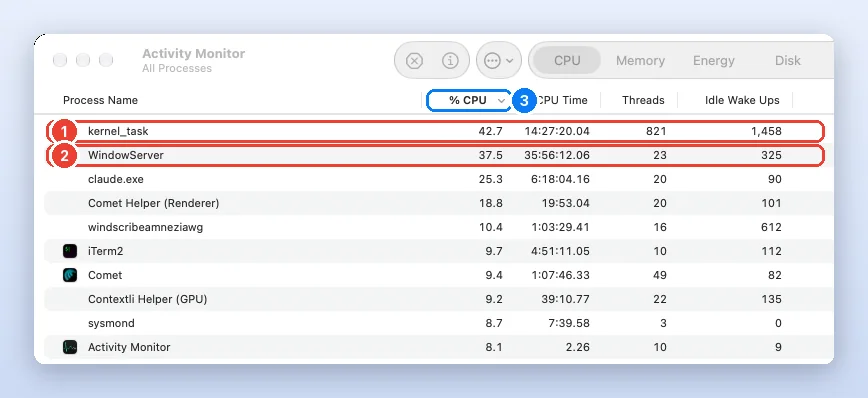
Force Quit: The process quits immediately. If the process has files open, you may lose data. If the process is used by other apps or processes, those apps or processes could experience problems.
6. Force quit from Terminal (kill and killall)
Terminal is the last resort when windows stop responding but the Mac still takes typing, or when you are connected over SSH. There are three commands worth knowing.
killall ends every process with a given name. We ran this on our test Mac with TextEdit open; it printed nothing and TextEdit vanished, which is what success looks like:
killall TextEdit
killall "Google Chrome".kill ends one process by its ID (PID). Find the PID with pgrep, then send the normal quit signal, and only escalate to -9 if the process ignores it:
pgrep -l TextEdit
13991 TextEditkill 13991, and if it is still there after 5 seconds, kill -9 13991.pkill matches part of a name, handy for helpers: pkill -f "Chrome Helper". Details for all three are on SS64: kill, killall and pkill.
| Command | Signal | What the app gets to do |
|---|---|---|
kill PID / killall Name | TERM (15) | Clean up and exit, like a polite Force Quit |
kill -9 PID | KILL (9) | Nothing. Ends instantly, cannot be ignored |
sudo kill -9 PID | KILL (9) | For processes owned by another user or root. Use with care |
How do you force quit Finder?
Finder cannot be quit, because macOS needs it for the desktop and Dock. When Finder freezes, open the Force Quit window with ⌘ Command + ⌥ Option + Esc, select Finder, and the button changes to Relaunch. Click it and Finder restarts in a couple of seconds. From Terminal, killall Finder does the same thing.
7. Force restart or shut down: what if force quit does not work?
If the Force Quit window will not open, or the app comes straight back frozen, the problem is bigger than one app. Work down this list:
- Restart normally: Apple menu > Restart. Apps get a chance to save.
- Force restart: on keyboards without Touch ID, press ⌃ Control + ⌘ Command + Power. The Mac restarts without asking to save.
- Force shut down: press and hold the power button, or Touch ID on laptops, for up to 10 seconds until the screen goes black. Wait a few seconds, press it again to start up.
If your Mac won’t restart, force your Mac to turn off: Press and hold the power button on your Mac for up to 10 seconds, until your Mac turns off.
If the whole Mac freezes rather than one app, use our step-by-step MacBook frozen guide, which separates Apple silicon and Intel steps.
Which way to force quit should you use?
| Method | Best when | Needs keyboard? | Ends background processes? |
|---|---|---|---|
| ⌘ Command + ⌥ Option + Esc | One app is frozen, keyboard works | Yes | No |
| Apple menu > Force Quit | Pointer works, keyboard does not | No | No |
| Option + right-click in Dock | You can see the app’s icon | Option key | No |
| ⌥ Option + ⇧ Shift + ⌘ Command + Esc | The frozen app is in front | Yes | No |
| Activity Monitor | A hidden process is the problem | Optional | Yes |
Terminal kill | Windows frozen, or remote access | Yes | Yes |
| Hold power ~10 s | Entire Mac frozen | No | Everything |
Will force quitting lose my work?
Only the unsaved work in the app you force quit. Many Mac apps, including Pages, Numbers, TextEdit and most code editors, save versions automatically every few minutes, so reopening the app usually brings back most of it. Browsers such as Safari and Chrome offer to reopen your tabs. Other apps are not affected at all.
What force quitting does not fix is the cause. If the same app freezes every day, update it, check its memory use in Activity Monitor, and read why below.
Why do Mac apps freeze?
The spinning rainbow wheel appears when an app has not processed its queue of clicks and key presses for about 2 seconds, according to the Wikipedia entry on the spinning pinwheel. That can mean the app is truly stuck, or just busy. The common causes we see:
- Out of memory. When memory pressure goes yellow or red, macOS swaps to disk and every app slows down. Our test Mac had 6.95 GB in swap at capture time. Check yours in Check RAM usage on Mac.
- One process hogging the CPU. A stuck browser tab or export job can hold a core at 100%. See Check CPU usage on Mac.
- Waiting on a disk or network drive that has gone to sleep or disconnected.
- An outdated app after a macOS update. Check the App Store or the developer’s site.
Watch it done
Frequently asked questions
How do you force quit on a Mac when it is frozen?
Press Command + Option + Esc, select the app and click Force Quit. If the pointer and keyboard do not respond at all, press and hold the power button or Touch ID for about 10 seconds to turn the Mac off, then turn it on again.
What is the force quit shortcut on Mac?
Command + Option + Esc opens the Force Quit Applications window. Command + Option + Shift + Esc force quits the frontmost app directly, without a window.
How do I force quit an app that won't force quit?
Open Activity Monitor, select the process and choose Force Quit, or use Terminal: killall "App Name" or kill -9 followed by the PID. If that fails, restart the Mac from the Apple menu or hold the power button.
How do I force shut down a Mac?
Press and hold the power button, or the Touch ID button on a laptop, for up to 10 seconds until the screen goes black. Unsaved work in every app is lost.
How do I force quit Finder?
Open Force Quit Applications with Command + Option + Esc, select Finder and click Relaunch. Finder closes and reopens by itself.
Is force quitting bad for a Mac?
No. It only ends one app and loses that app's unsaved work. Force quitting system processes such as WindowServer or kernel_task is different and can log you out or restart the Mac.
Why is my Mac frozen but the mouse still moves?
Usually one app or Finder is stuck while macOS itself is fine. Press Command + Option + Esc and force quit the app in front, or relaunch Finder. If nothing responds after a minute, restart.
How do I close apps on a Mac without force quitting?
Press Command + Q, or choose Quit from the app's menu. Closing the window with the red button usually leaves the app running in the background.
Junaid is a software engineer who builds native macOS apps, which means he spends his days inside Activity Monitor, Instruments and the Terminal watching how Mac apps use CPU and memory. Before that he worked as an L2 technical support consultant, resolving around 500 escalated customer tickets with a satisfaction score above 95%. He holds a BSc in Software Engineering from NUST. Every step on this site is re-run on a real Mac before it is published.
Sources
- Apple Support: How to force an app to quit on Mac
- Apple Support: Mac keyboard shortcuts
- Apple: Quit an app or process in Activity Monitor
- Apple: Shut down or restart your Mac
- SS64: kill command for macOS
- SS64: killall command for macOS
- SS64: pkill command for macOS
- Wikipedia: Spinning pinwheel
- MacMost: 5 Ways To Force Quit Apps On a Mac