MacBook Frozen? How to Unfreeze It, Step by Step
A MacBook frozen on a spinning wheel is usually one stuck app, not a broken Mac, and you can fix it without losing work in everything else. If the whole Mac is frozen, a force restart takes about 10 seconds. Here are the steps in the right order, with separate instructions for Apple silicon and Intel Macs.

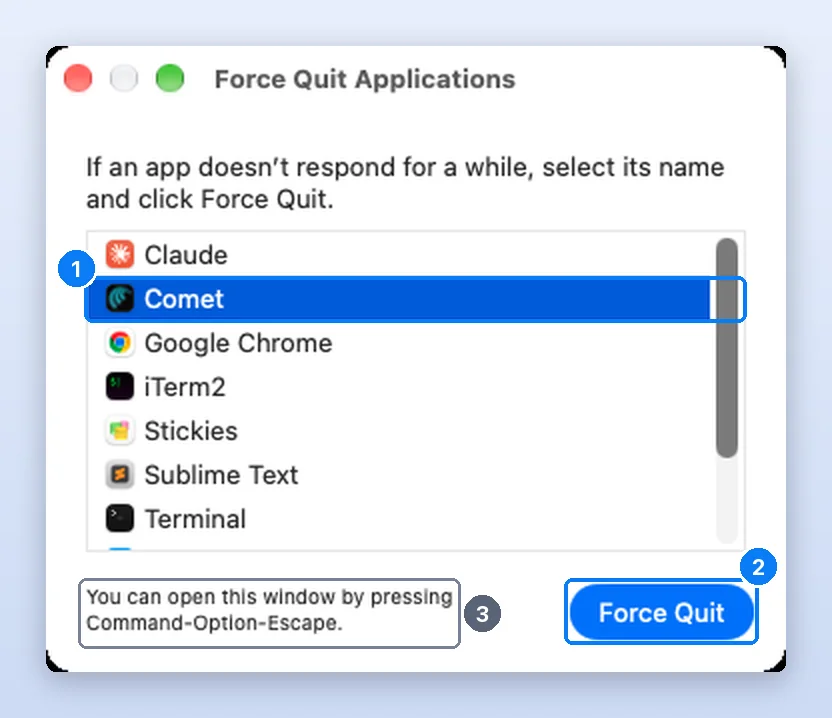
If your MacBook is frozen, first check whether the pointer still moves. If it does, press ⌘ Command + ⌥ Option + Esc and force quit the stuck app. If nothing moves for a full minute, press and hold the power button (Touch ID on newer MacBooks) for about 10 seconds until the screen goes black, wait a few seconds, then press it again to start up. That force restart works on every Mac, Apple silicon or Intel.
Is it one app or the whole Mac?
Move the pointer: if it moves, one app is frozen; if it does not, the whole Mac is. That one question decides everything, and it takes 5 seconds to answer.
- The pointer moves, maybe as a spinning wheel: macOS is fine and one app is stuck. You can fix it without losing work in other apps.
- Nothing moves, no keys work: the whole Mac is frozen. Give it 60 seconds, because a Mac that is swapping memory to disk can look dead and then recover. After that, force restart.
- Screen is black but the Mac is on: press a key, then check brightness. If it stays black, treat it as a whole-Mac freeze.
How to unfreeze a MacBook, step by step
Go in this order. Each step loses more unsaved work than the one before it, so stop at the first one that works.
- Wait 60 seconds. Watch for the pointer to come back. A Mac that is swapping memory to disk can stall for several seconds, sometimes longer, and then recover on its own.
- Force quit the frozen app. Press Command + Option + Esc, select the app marked Not Responding and click Force Quit. Or hold Option, right-click its Dock icon and choose Force Quit.
- Relaunch Finder if the desktop is stuck. In the same Force Quit window, select Finder and click Relaunch. From Terminal,
killall Finderdoes the same (SS64 reference). - Restart normally. Choose Apple menu, Restart. Apps get a chance to save.
- Force restart. Hold the power button or Touch ID for about 10 seconds until the Mac turns off. Release, wait a few seconds, press it again.
- Check what caused it. Once it is back, open Activity Monitor and look at memory pressure and the top CPU users before reopening everything.
How to force restart a Mac
A force restart cuts power to everything, so any unsaved work in any app is lost. Use it only when the Mac will not respond to anything else.
| Your Mac | How to force restart |
|---|---|
| MacBook Air or MacBook Pro with Touch ID | Press and hold Touch ID (top-right key) for about 10 seconds until the screen goes black, then press it again |
| Older MacBook with a power key, no Touch ID | Hold the power key about 10 seconds, or press ⌃ Control + ⌘ Command + Power to restart without saving |
| iMac, Mac mini, Mac Studio, Mac Pro | Hold the power button on the back or bottom for about 10 seconds |
| Any Mac, keyboard dead | Same: the power button works even when the keyboard does not |
Press and hold the power button on your Mac for up to 10 seconds, until your Mac turns off. (Every Mac has a power button. On laptop computers that have Touch ID, press and hold the Touch ID button.)
Apple’s keyboard shortcut list adds that ⌃ Control + ⌘ Command + Power forces a restart “without prompting to save any open and unsaved documents”, on built-in keyboards without Touch ID (Apple Support).
Apple silicon vs Intel: which steps differ?
Force quit and force restart are identical on both. The deeper fixes are not, and this is where most frozen-Mac guides go wrong: SMC and NVRAM resets are Intel-only procedures. To check which you have, choose Apple menu, About This Mac. Chip means Apple silicon; Processor means Intel.
| Fix | Apple silicon (M1 and later) | Intel Mac |
|---|---|---|
| Safe mode | Shut down, hold power until “Loading startup options”, select the disk, hold Shift, click Continue in Safe Mode | Restart and immediately hold Shift until the login window |
| SMC reset | Not needed: a normal restart resets it | Laptop key sequence below; desktops: unplug for 15 seconds |
| NVRAM / PRAM reset | No key combination | Hold Option + Command + P + R at startup |
| Apple Diagnostics | Hold power until Options appears, then hold Command + D | Hold D at startup (or Option + D) |
No other steps are needed. SMC resets automatically on Mac with Apple silicon.
Intel SMC reset, laptops. Apple gives two sequences (Reset the SMC):
- With a T2 chip (most 2018 to 2020 Intel MacBooks): shut down, then hold left ⌃ Control, left ⌥ Option and right ⇧ Shift for 7 seconds; keep holding them, add the power button, and hold all four for another 7 seconds. Release, wait a few seconds, press power.
- Older, without T2: shut down, hold left ⇧ Shift, left ⌃ Control and left ⌥ Option, add the power button, and hold all four for 10 seconds. Release and press power.
- Intel desktops: shut down, unplug for 15 seconds, plug back in, wait 5 seconds, press power.
Sources: Apple’s safe mode guide, Apple’s SMC article, Mac startup key combinations and Apple Diagnostics.
Should I run Disk Utility First Aid?
Yes, if apps keep quitting or freezing after a crash. First Aid checks the startup disk for errors and repairs what it can. Open Disk Utility (Applications > Utilities), choose View > Show All Devices, select each volume in turn, click First Aid, then Run. For the startup disk, Apple recommends running it from macOS Recovery, and checking both Macintosh HD and Macintosh HD - Data (Apple’s First Aid guide).
If Disk Utility tells you the disk is about to fail, back up your data and replace the disk.
What if the Mac freezes on the Apple logo, login screen or during an update?
- During a macOS update, wait. A progress bar that looks stuck can take 30 minutes or more on a big update. Only intervene if nothing has changed for over an hour.
- Force shut down by holding the power button for 10 seconds, then start up again.
- Start in safe mode (steps in the table above). If the Mac reaches the desktop, restart normally from there; a startup item was often the cause.
- Open macOS Recovery. On Apple silicon, hold the power button until Options appears and click it. On Intel, hold ⌘ Command + R at startup. Run Disk Utility First Aid from there.
- Reinstall macOS from Recovery. It replaces the system and keeps your files, but have a Time Machine backup first if you can.
How to use safe mode to find the cause
Safe mode starts the Mac with only essential software: no login items, no third-party extensions, and a quick disk check. If the freezes stop in safe mode, something that loads at startup is the cause. Remove login items in System Settings > General > Login Items & Extensions one at a time until the freezes return.
If the Mac also freezes in safe mode, suspect hardware or macOS itself: run Apple Diagnostics, then reinstall macOS from Recovery, which keeps your files.
Why does my MacBook keep freezing?
The usual causes, and how to check each one:
- Memory pressure. When RAM runs out, macOS compresses memory and then swaps to the SSD. Everything slows, and past a point apps stall. macOS even kills processes to recover: our test Mac’s diagnostic reports folder held a
JetsamEventreport from 29 September, which is exactly that. Apple’s developer documentation explains these jetsam event reports. Check memory in How to check RAM usage. - A runaway app. One browser tab, export or sync job pinning the CPU; the spinning wheel shows once an app ignores input for about 2 seconds (Wikipedia). See CPU usage on Mac.
- A nearly full disk. Swap and updates both need free space. Check in System Settings > General > Storage.
- Login items and old extensions after a macOS upgrade. Safe mode tells you.
- Overheating. A hot Mac slows itself down on purpose, and
kernel_taskclimbs in Activity Monitor as it does. - Failing hardware, much less often. Apple Diagnostics will report a reference code.
sysctl vm.swapusage
vm.swapusage: total = 8192.00M used = 6661.94M free = 1530.06M (encrypted)Why does my Mac freeze for a few seconds, then recover?
Short freezes of 2 to 10 seconds that clear by themselves are almost always the Mac waiting on something: memory being swapped back from disk, Spotlight indexing after an update, iCloud syncing a large folder, or an external drive spinning up. Watch Activity Monitor’s Memory tab during a freeze. If the pressure graph is yellow or red, closing a few heavy apps fixes it; restarting once a week also clears accumulated swap.
What are the signs of MacBook failure?
- The Mac restarts by itself with a message that it “restarted because of a problem” (a kernel panic), more than once a week.
- Freezes continue in safe mode and after reinstalling macOS.
- Apple Diagnostics reports a reference code.
- The fan runs at full speed while Activity Monitor shows little CPU use, or the Mac shuts off when it is warm.
- Clicking or grinding sounds (older Macs with spinning drives only).
Any of these is worth a trip to Apple or an authorised repair shop, and a fresh Time Machine backup before you go.
Watch it done
Frequently asked questions
How do you unfreeze a MacBook?
If the pointer moves, press Command + Option + Esc and force quit the frozen app. If nothing responds for a minute, hold the power button or Touch ID for about 10 seconds until it turns off, then press it again to start up.
How do I force restart my Mac?
Press and hold the power button, or Touch ID on a MacBook, for about 10 seconds until the screen goes black. Release it, wait a few seconds, and press it again. On keyboards without Touch ID, Control + Command + Power also forces a restart.
Why is my Mac frozen and I can't click anything?
Usually one app has taken over the screen or the Mac is out of memory and swapping. Wait 60 seconds, then try Command + Option + Esc. If the keyboard does nothing either, force restart with the power button.
Why is my Mac frozen but the mouse still moves?
macOS is still running; one app or Finder is stuck. Force quit that app with Command + Option + Esc, or relaunch Finder from the same window.
How do I force quit when my Mac is frozen?
Press Command + Option + Esc. If the window does not appear, hold Option, right-click the app in the Dock and choose Force Quit. If nothing works, hold the power button for 10 seconds.
Does force restarting damage a Mac?
No. It loses unsaved work, and occasionally a file that was being written, but it does not harm the hardware. Doing it daily means something else needs fixing.
What causes a MacBook to freeze?
Most often too little free memory, one app using all the CPU, a nearly full disk, or a login item or extension that broke after a macOS update. Hardware faults are much rarer.
How do I reset an unresponsive Mac?
Force restart it with the power button. If it keeps freezing, start in safe mode, remove recent login items, and run Apple Diagnostics. On Intel Macs you can also reset the SMC and NVRAM; Apple silicon Macs do this automatically.
Junaid is a software engineer who builds native macOS apps, which means he spends his days inside Activity Monitor, Instruments and the Terminal watching how Mac apps use CPU and memory. Before that he worked as an L2 technical support consultant, resolving around 500 escalated customer tickets with a satisfaction score above 95%. He holds a BSc in Software Engineering from NUST. Every step on this site is re-run on a real Mac before it is published.
Sources
- Apple Support: How to force an app to quit on Mac
- Apple Support: Mac keyboard shortcuts
- Apple: Shut down or restart your Mac
- Apple: Start up your Mac in safe mode
- Apple Support: Reset the SMC of your Mac
- Apple Support: Mac startup key combinations
- Apple Support: Use Apple Diagnostics to test your Mac
- Apple: Repair a storage device in Disk Utility
- Apple: Check if your Mac needs more RAM
- Apple Developer: Identifying high-memory use with jetsam event reports
- Wikipedia: Spinning pinwheel
- Wikipedia: Kernel panic
- SS64: killall command for macOS