Task Manager on Mac: How to Open It and What to Quit
There is no app called Task Manager on a Mac. The Mac task manager is really two built-in tools: Force Quit Applications for a frozen app, and Activity Monitor for every process with its CPU, memory and energy use. Here is how to open both in a couple of seconds, which shortcuts matter, and how to tell what is safe to quit.

To open Task Manager on a Mac, press ⌘ Command + ⌥ Option + Esc. That opens Force Quit Applications, the Mac’s answer to Ctrl+Alt+Delete. For the full list of running processes with CPU and memory use, press ⌘ Command + Space, type Activity Monitor and press Return. Those two built-in tools do everything Windows Task Manager does.
Does a Mac have a Task Manager?
Not under that name. Windows puts everything in one app called Task Manager. macOS splits the same job between two tools that ship with every Mac, and has done since Mac OS X 10.3 in 2003, when Activity Monitor replaced the older Process Viewer (Wikipedia’s list of built-in macOS apps tracks that history):
- Force Quit Applications: a small window that lists your open apps and closes a frozen one in two clicks. This is the fast path, and the one Windows switchers mean when they search “Ctrl+Alt+Delete on Mac”.
- Activity Monitor: the full task manager. It lists every process, not just apps, with live CPU, memory, energy, disk and network numbers, and it can quit any of them.
Here is how each Windows Task Manager job maps onto the Mac:
| What you did in Windows Task Manager | Mac tool | How to get there |
|---|---|---|
| End a frozen app (End task) | Force Quit Applications | ⌘ Command + ⌥ Option + Esc |
| See every process (Processes / Details tab) | Activity Monitor | ⌘ Command + Space, type “Activity” |
| CPU and memory graphs (Performance tab) | Activity Monitor, bottom panel, or Window > CPU History | ⌘ Command + 3 inside Activity Monitor |
| Battery drain per app (Power usage column) | Activity Monitor, Energy tab | Click Energy |
| Startup apps (Startup tab) | System Settings > General > Login Items & Extensions | Apple menu > System Settings |
| Services | Activity Monitor, View > System Processes | View menu |
How to open Task Manager on Mac: 5 ways
The quickest way to open Task Manager on a Mac is Spotlight: press ⌘ Command + Space, type Activity and press Return. We ran every method below on a 16 GB M1 Pro MacBook Pro running macOS 27. The two keyboard routes are the quickest; the Finder route is the one to remember when Spotlight is misbehaving.
- Use Spotlight. Press ⌘ Command + Space, type Activity, and press Return when Activity Monitor is highlighted. This is the fastest route to the full task manager.
- Use the Force Quit shortcut. Press ⌘ Command + ⌥ Option + Esc for the quick Force Quit Applications window when all you need is to close a stuck app.
- Use the Apple menu. Click the Apple menu in the top-left corner and choose Force Quit…. It opens the same window as the shortcut and works when the keyboard does not.
- Use Finder. Open Finder, choose Go > Utilities (or press ⇧ Shift + ⌘ Command + U), then double-click Activity Monitor.
- Keep it in the Dock. With Activity Monitor open, Control-click its Dock icon and choose Options > Keep in Dock. Next time it is one click away.
What is the Task Manager shortcut on Mac?
The Task Manager shortcut on Mac is ⌘ Command + ⌥ Option + Esc. We confirmed every shortcut below in the live menus on macOS 27, and the core ones are also listed on Apple’s keyboard shortcuts page.
| Shortcut | What it does | Where it works |
|---|---|---|
| ⌘ Command + ⌥ Option + Esc | Open Force Quit Applications | Anywhere |
| ⌘ Command + ⌥ Option + ⇧ Shift + Esc | Force quit the frontmost app at once, no window, no confirmation | Anywhere (hold briefly) |
| ⌘ Command + Q | Quit the current app normally, so it can ask to save | Any app |
| ⌘ Command + Space, “Activity” | Open Activity Monitor | Anywhere |
| ⌥ Option + ⌘ Command + Q | Quit the selected process | Inside Activity Monitor |
| ⌥ Option + ⌘ Command + F | Jump to the search field to filter processes | Inside Activity Monitor |
| ⌘ Command + I | Inspect the selected process (memory, open files, ports) | Inside Activity Monitor |
| ⌘ Command + 2 / 3 | Floating CPU Usage / CPU History window | Inside Activity Monitor |
| ⌃ Control + ⌘ Command + Power | Force restart, without saving | Keyboards without Touch ID |
The second row is the hidden one. Open the Apple menu and hold ⇧ Shift: Force Quit… turns into Force Quit [app name], and the menu shows its shortcut, ⌥ Option + ⇧ Shift + ⌘ Command + Esc. It skips the window entirely, so make sure the frozen app is the one in front before you press it.
Can you make Ctrl+Alt+Delete itself work? Not with a built-in setting. We tried the usual trick on macOS 27, an App Shortcuts override for the Apple menu’s Force Quit… item, and the Apple menu kept ⌘ Command + ⌥ Option + Esc. Your fingers adapt fast: the Mac keeps the same three-key habit, just on different keys. More in Ctrl+Alt+Delete on Mac.
How do I end a task on a Mac?
“End task” on a Mac is called Quit or Force Quit. Try them in this order, because each step is more forceful than the last:
- Quit normally with ⌘ Command + Q. The app saves and closes itself.
- Force Quit with ⌘ Command + ⌥ Option + Esc, select the app, click Force Quit. Unsaved work in that app is lost.
- Quit a background process from Activity Monitor: select it, click the stop button, then Quit or Force Quit.
- Use Terminal when the windows themselves will not respond:
killall Safari
When an app quits normally, it can do what it needs to do before quitting, such as to save changes. So before you decide to force an app to quit, try to quit the app normally.
The full set of methods, including the Dock and what to do when Force Quit itself fails, is in How to force quit on Mac.
What is safe to quit in Activity Monitor?
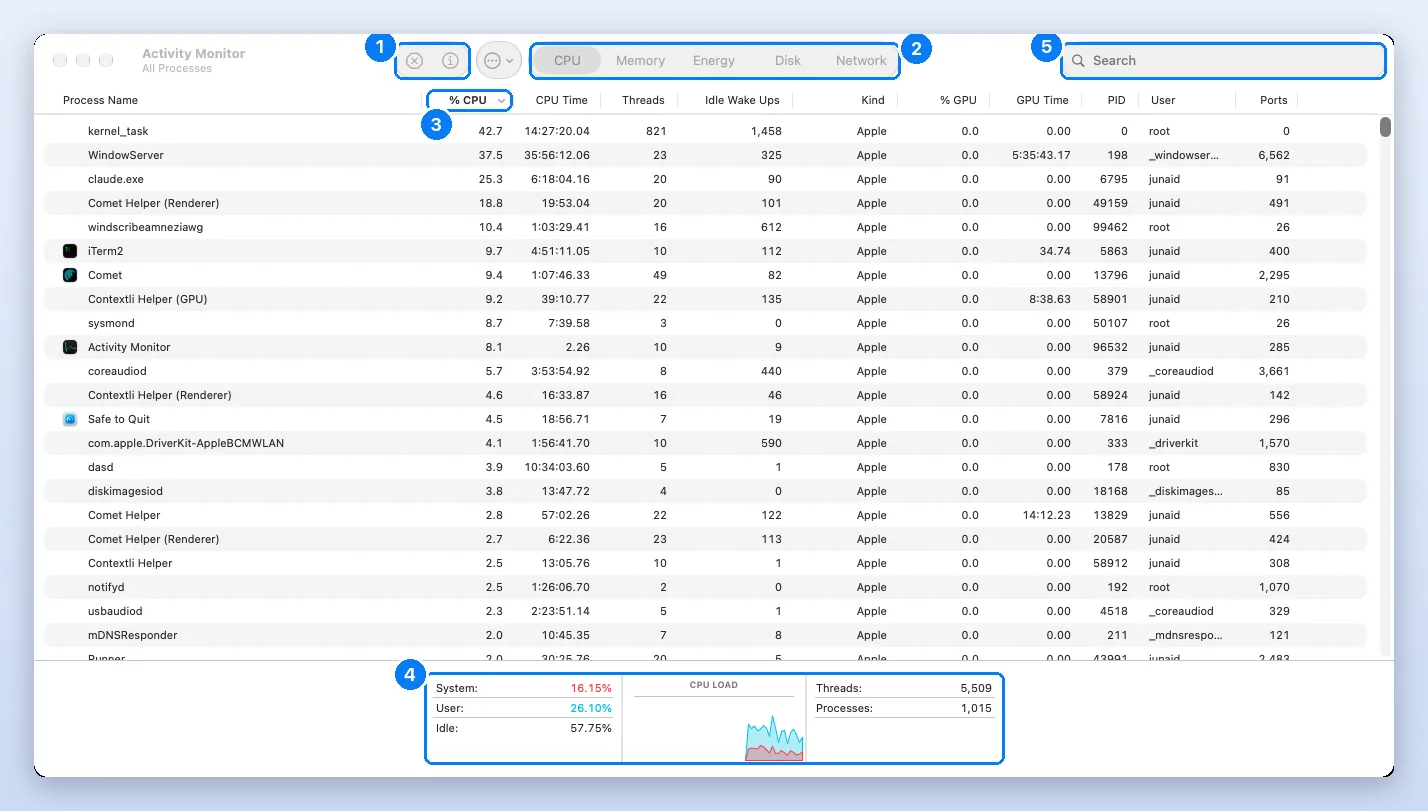
It is safe to quit any app you opened yourself and anything marked (Not Responding). Never quit kernel_task, WindowServer or other macOS processes. This is the part most guides skip. Activity Monitor shows every process, not just apps. When we checked, 1,079 processes were running (1,015 in the screenshot taken a few minutes earlier) while only 12 apps had a Dock icon. The rest are parts of macOS or helpers of those apps, and quitting the wrong one can log you out or restart the Mac.
- Anything marked (Not Responding) in red
- Apps you opened yourself, like a browser, Slack or a game
- Helper processes named after those apps, such as
Google Chrome Helper (Renderer), one per tab - A single app holding far more CPU than the rest for more than a few minutes
kernel_task: the core of macOS. High CPU here is often macOS cooling the Mac on purposeWindowServer: draws everything on screen. Quitting it logs you outlaunchd,loginwindow,mds_stores(Spotlight) and anything owned byrootor_users- Time Machine (
backupd) mid-backup
In our screenshot above, kernel_task sat at 42.7% CPU and WindowServer at 37.5%, yet the Mac was 57.75% idle. Neither needed quitting. For any other name you do not recognise, our Mac processes list explains 369 macOS background processes in plain English and says whether to quit each one. A high number is only a problem when it stays high and the Mac feels hot, loud or slow.
How do I check memory and CPU usage?
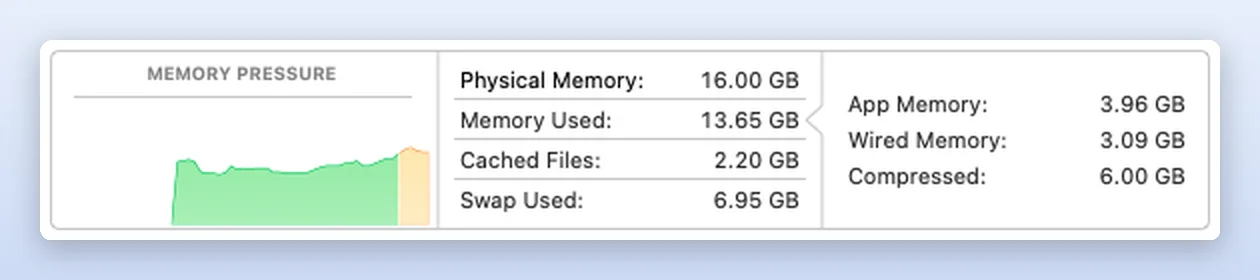
Open Activity Monitor and click the Memory tab. Ignore how much RAM is “used”: macOS deliberately fills spare memory with cache. Look at the Memory Pressure graph at the bottom instead. Green is fine, yellow means the Mac is compressing and swapping, red means it needs more memory than it has. Our test Mac showed 13.65 GB used of 16 GB with green pressure, which is healthy. Full guide: How to check RAM usage on Mac.
You can use Activity Monitor to quit a process, even if it’s in a loop or not responding.
For CPU, click the CPU tab and then the % CPU column header. Remember that the figure is per core: on an 8-core Mac the ceiling is 800%, so one app at 120% is using just over one core. Full guide: How to check CPU usage on Mac.
Is there a better Task Manager app for Mac?
For most people the two built-in tools are enough, and they are free. Third-party options fall into three groups:
| Type | Good for | Trade-off |
|---|---|---|
| Built-in (Force Quit + Activity Monitor) | Everything Windows Task Manager does | You have to know what the numbers mean |
| Menu bar monitors (such as iStat Menus or Stats) | Always-visible CPU, memory and temperature graphs | More numbers, not fewer |
| Plain-English watchers (such as Safe to Quit) | People who never want to open Activity Monitor | Answers “which app?”, not every metric |
Avoid “Mac cleaner” apps that promise to free RAM. macOS manages memory itself, and forcing it empty just makes apps reload from disk.
Frequently asked questions
Is there a Task Manager on a Mac?
Not by that name. The Mac equivalents are Force Quit Applications (Command + Option + Esc) for closing a frozen app and Activity Monitor for the full list of processes with CPU, memory, energy, disk and network use.
What is the Ctrl+Alt+Delete for Mac?
Command + Option + Esc. It opens the Force Quit Applications window, where you select a frozen app and click Force Quit. See our Ctrl+Alt+Delete on Mac guide for remote desktop and virtual machine cases.
How do I open Task Manager on a MacBook?
Press Command + Space, type Activity Monitor and press Return. For just the quick force quit list, press Command + Option + Esc. Both work the same on every MacBook Air and MacBook Pro.
How do I end a task on Mac?
Press Command + Q to quit normally. If the app is frozen, press Command + Option + Esc, select it and click Force Quit. Background processes can be ended from Activity Monitor with the stop button.
What is Command+K on Mac?
It depends on the app. In Finder, Command + K opens Connect to Server; in many editors and chat apps it inserts a link or opens a quick switcher. Inside Activity Monitor, Command + K clears the CPU history graph.
Is Activity Monitor the same as Task Manager?
It is the closest match. Activity Monitor covers the Processes, Performance and App history parts of Windows Task Manager. Startup apps live separately in System Settings > General > Login Items & Extensions.
Is it safe to use Activity Monitor?
Yes. Looking changes nothing. The only risk is quitting system processes such as kernel_task or WindowServer, which can log you out or restart the Mac. Quitting apps you opened yourself is safe.
Junaid is a software engineer who builds native macOS apps, which means he spends his days inside Activity Monitor, Instruments and the Terminal watching how Mac apps use CPU and memory. Before that he worked as an L2 technical support consultant, resolving around 500 escalated customer tickets with a satisfaction score above 95%. He holds a BSc in Software Engineering from NUST. Every step on this site is re-run on a real Mac before it is published.
Sources
- Apple Support: Mac keyboard shortcuts
- Apple Support: How to force an app to quit on Mac
- Apple: Activity Monitor User Guide
- Apple: Quit an app or process in Activity Monitor
- Apple: View memory usage in Activity Monitor
- Apple: View CPU activity in Activity Monitor
- SS64: killall command for macOS
- Microsoft Support: Keyboard shortcuts in Windows
- Wikipedia: List of built-in macOS apps